
Set Up Telegram
Pinchy supports Telegram as a channel for your agents. Each agent can have its own Telegram bot, and users link their Telegram account once to access all bots they have permission to use.
Prerequisites
Section titled “Prerequisites”- A running Pinchy instance with at least one agent
- A Telegram account
- Admin access to Pinchy
Step 1: Create a Telegram Bot
Section titled “Step 1: Create a Telegram Bot”- Open BotFather in Telegram (or use the desktop/web app for easy copy-paste)
- Send
/newbot - Choose a display name for your bot
- Choose a username ending in
bot(must be unique on Telegram) - Copy the bot token BotFather gives you
Step 2: Connect the Bot to Smithers
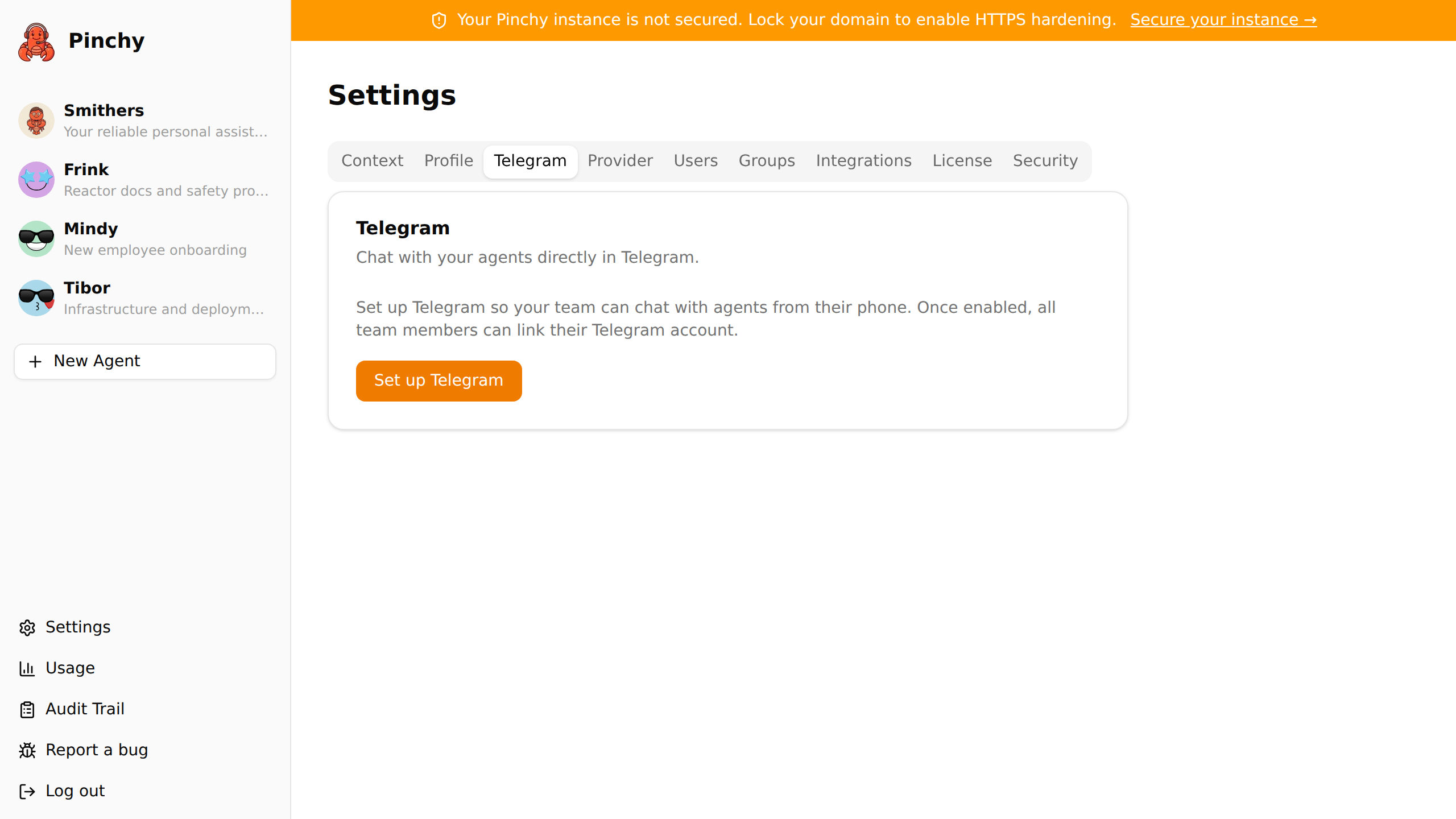
Section titled “Step 2: Connect the Bot to Smithers”- Go to Settings → Telegram
- Click Set up Telegram
- Paste the bot token
- Click Connect
Your bot token is encrypted at rest and never leaves your server.
Step 3: Link Your Telegram Account
Section titled “Step 3: Link Your Telegram Account”After an admin connects a bot, each team member links their own Telegram account:
- Go to Settings → Telegram
- Scan the QR code with your phone (or click "Open in Telegram")
- Send any message to the bot
- Copy the pairing code from the bot's response
- Paste it into Pinchy and click Link
You're now linked. Messages you send to the bot are answered by the agent.
Sending Files and Photos
Section titled “Sending Files and Photos”Send a photo or a file to the bot, and Pinchy mirrors it into the agent's workspace automatically — no upload step needed. The agent can then read it, or hand it to a tool like odoo_attach_file, the same way it would a chat attachment or an email attachment. See Attachments for how this fits into the rest of the upload system.
A couple of things worth knowing:
- Size limit: Telegram bots can only download files up to 20 MB, so that's the effective ceiling — Pinchy's own mirror limit is a more generous 25 MB.
- Photo vs. file: Telegram recompresses and strips metadata from anything sent as a photo, and replaces the filename with a generated one. If you need the original quality — full resolution, EXIF data, the real filename — send it as a file/document instead of a photo. For everyday things like receipts, either way works fine.
Connect Additional Agents
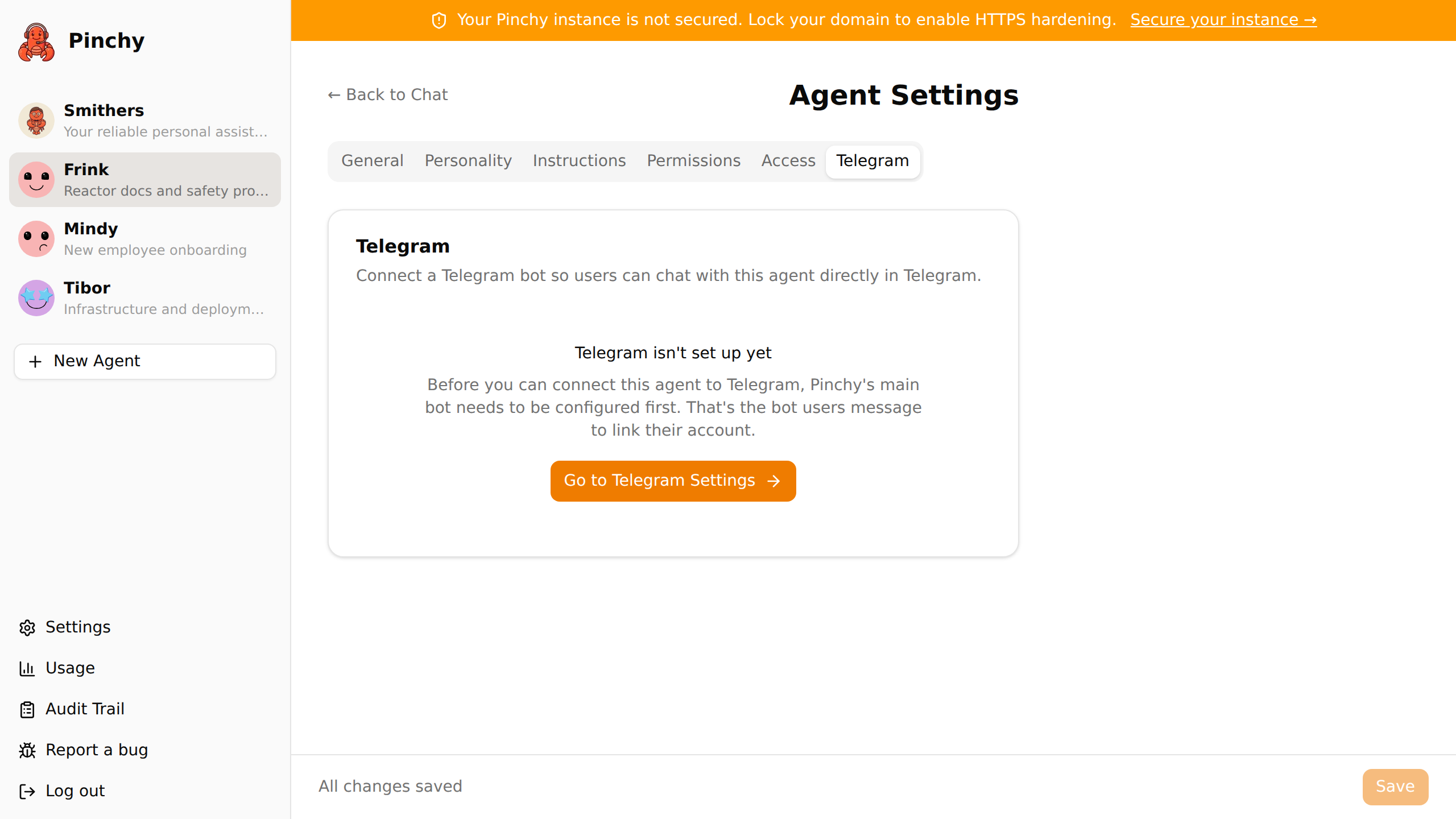
Section titled “Connect Additional Agents”Each agent can have its own Telegram bot. To connect a second agent:
- Create a new bot via BotFather (repeat Step 1)
- Go to Agent Settings → Telegram for the agent you want to connect
- Paste the new bot token and click Connect
How Permissions Work
Section titled “How Permissions Work”Telegram access follows Pinchy's permission model:
- Agents with visibility "All": Every linked user can message the bot
- Restricted agents: Only users in the agent's allowed groups (and admins) can message the bot
- If a user messages a bot they don't have access to, they receive a pairing prompt instead of an agent response
When group memberships or agent visibility change, Telegram access is updated automatically.
Unlinking and Removing
Section titled “Unlinking and Removing”- Unlink your account: Settings → Telegram → Unlink. You can re-link anytime.
- Disconnect an agent's bot: Agent Settings → Telegram → Disconnect (not available for Smithers)
- Remove Telegram for everyone: Settings → Telegram → Remove Telegram for everyone. This disconnects all bots and unlinks all users.