
Connect Odoo
This guide walks you through connecting your Odoo instance to Pinchy so your agents can query sales orders, contacts, inventory, and other business data — without giving them direct database access.
Prerequisites
Section titled “Prerequisites”- Pinchy is running (see Quick Start)
- An Odoo instance with API access enabled
- You're logged in as an admin in Pinchy
1. Create an API key in Odoo
Section titled “1. Create an API key in Odoo”Pinchy connects to Odoo via its External API using a personal API key.
- Log in to your Odoo instance
- Go to Settings → Users & Companies → Users
- Click on your user
- Open the API Keys tab
- Click New API Key, give it a name (e.g. "Pinchy"), and confirm your password
- Copy the key — you won't see it again
2. Add the connection in Pinchy
Section titled “2. Add the connection in Pinchy”- Go to Settings → Integrations
- Click Add Integration and select Odoo
- Enter:
- URL — your Odoo instance URL (e.g.
https://erp.yourcompany.com) - Database — auto-detected after you enter the URL, or enter it manually
- Email — the email of the Odoo user whose API key you created
- API Key — the key you copied in step 1
- URL — your Odoo instance URL (e.g.
- Click Connect
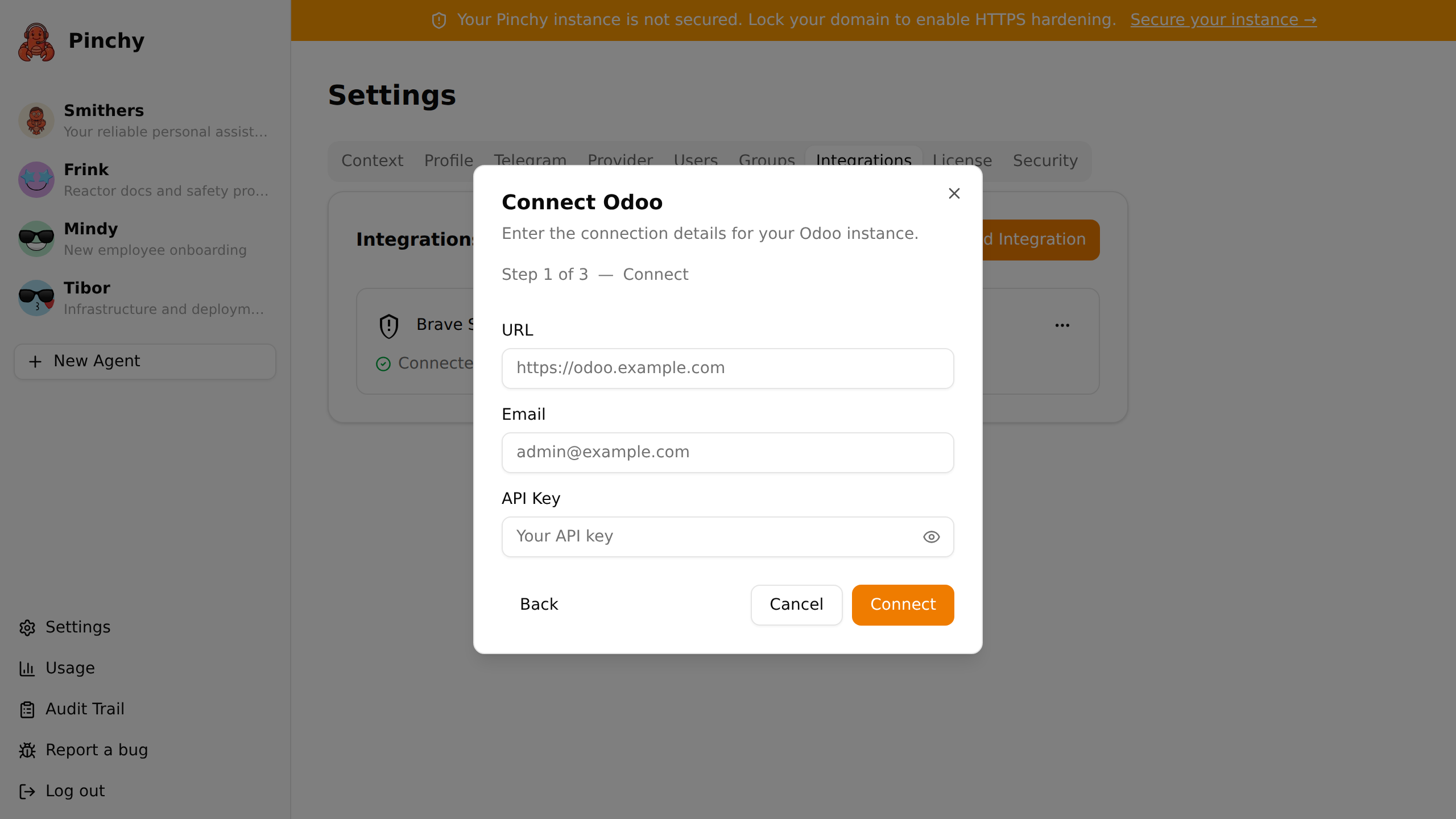
Pinchy verifies the credentials and probes the available data models. If the connection fails, double-check the URL and API key.
3. Review the sync
Section titled “3. Review the sync”After a successful connection, Pinchy shows which data categories are accessible — Sales, Inventory, Contacts, Accounting, and others. This depends on the Odoo modules you have installed and the permissions of the API user.
Review the list and click Save.
4. Grant agent access
Section titled “4. Grant agent access”A connection alone doesn't give any agent access. You need to explicitly grant it.
- Open the agent you want to connect to Odoo
- Click the gear icon to open Agent Settings
- Select the Permissions tab
- In the Odoo section, select:
- Connection — pick the connection you just created
- Access level — Read-only, Read & Write, or Full
- Models — optionally restrict to specific models (e.g. only
sale.orderandres.partner)
- Click Save
Access levels
Section titled “Access levels”| Level | Tools enabled | Use case |
|---|---|---|
| Read-only | list-models, describe-model, read, count, aggregate | Reporting, dashboards, Q&A |
| Read & Write | read-only set + create, write, attach-file | Data entry, updating records |
| Full | read & write set + delete | Full CRUD — use with caution |
| Custom | You pick individual tools | Fine-grained control |
Each level maps directly to the Odoo tools that get enabled for the agent. See Agent Permissions for the full tool list.
5. Test it
Section titled “5. Test it”Open the agent's chat and try a few queries:
- "List all sales orders from this month"
- "How many contacts do we have in Germany?"
- "Show me the inventory for product X"
The agent uses the Odoo tools to query your data in real time. If something doesn't work, check that the Odoo user has the right permissions for the models you're querying.
Agent Templates
Section titled “Agent Templates”Pinchy ships with 20+ pre-configured agent templates for common Odoo use cases. Instead of building an agent from scratch and manually assigning permissions, you can pick a template and have everything set up in seconds.
Each template auto-configures the agent's permissions, tools, and system instructions. All you need to do is select which Odoo connection the agent should use. During creation, Pinchy validates the API user's access rights against the models the agent needs. If some models are missing (e.g. the required Odoo module is not installed), Pinchy warns you so you can adjust the Odoo configuration or pick a different template.
Sales & Customer Operations
Section titled “Sales & Customer Operations”- Sales Analyst (read-only) — Revenue analysis, customer rankings, order trends, and product margin analysis using standard cost.
- CRM & Sales Assistant (read-write) — Pipeline management, lead follow-up, opportunity updates, customer data maintenance, and end-to-end quotation building. Includes
account.fiscal.position(read+write) for setting the right VAT regime,sale.order.line(read+create+write) for revising quotation line items directly, andaccount.move(read-only) for invoice payment lookup. Never drafts or posts invoices — that's the Bookkeeper agent's job. - Customer Service (read-write) — Answers order inquiries and drafts responses entirely through Odoo's mail alias and discussion thread, so agents never need external email access.
- Subscription Manager (read-only) — Tracks MRR, churn, renewal dates and recurring revenue across your subscription base.
Inventory & Supply Chain
Section titled “Inventory & Supply Chain”- Inventory Scout (read-only) — Stock monitoring, slow-mover detection, warehouse utilization and fulfillment speed.
- Warehouse Operator (read-write) — Goods receipts, picking confirmation, internal transfers and inventory adjustments, with a per-line confirmation step before validating moves.
- Procurement Agent (read-write) — Supplier comparison, price tracking, purchase order management and reorder suggestions.
- Manufacturing Planner (read-only) — Production order progress, BOM analysis, work center load and component shortages.
- Production Operator (read-write) — Runs manufacturing orders, advances work orders and reports finished and scrapped quantities, confirming before closing an order.
- Fleet Manager (read-only) — Vehicle tracking, service schedules, fuel consumption and total cost of ownership per vehicle.
Finance
Section titled “Finance”- Finance Controller (read-only) — Invoice tracking, payment status, aging analysis and margin reporting, plus read-only subscription diagnosis: why a subscription stopped invoicing or closed itself after unpaid invoices.
- Bookkeeper (read-write) — Books bills and invoices, reconciles payments and manages suppliers, drafting every entry first and posting only after explicit confirmation. Reads subscriptions to trace missing recurring invoices.
- Expense Auditor (read-only) — Reviews expense claims, flags policy violations, detects duplicates and unusual spending patterns.
- Approval Manager (read-write) — Reviews and approves expenses, leave and purchase orders against your policies, escalating anything above its authority.
Human Resources
Section titled “Human Resources”- HR Analyst (read-only) — Headcount reporting, leave balances, attendance tracking and contract overviews.
- HR Operator (read-write) — Records leave, logs attendance and updates non-sensitive employee details, confirming every write and leaving payroll and contracts to HR admins.
- Recruitment Coordinator (read-write) — Applicant tracking, job pipeline management, time-to-hire metrics and interview scheduling.
- Project Tracker (read-only) — Monitors project progress, deadlines, task load per employee and timesheet entries.
- Project Manager (read-write) — Creates and assigns tasks, plans milestones and logs timesheets, confirming before bulk changes or archiving.
Marketing & E-Commerce
Section titled “Marketing & E-Commerce”- Marketing Analyst (read-only) — Measures email campaign performance, open rates, click-throughs and UTM conversions.
- POS Analyst (read-only) — Analyzes point-of-sale revenue, cash sessions, payment methods and top-selling products.
- Website Analyst (read-only) — Tracks online sales, visitor behavior, top products and conversion funnels.
Multi-company databases
Section titled “Multi-company databases”If your Odoo database hosts more than one res.company, Pinchy adds two layers of protection on top of Odoo's own multi-company access rules.
Top-level cross-company write rejection. When an agent calls odoo_create or odoo_write, the pinchy-odoo plugin walks the embedded _pinchy_ref tags in the payload and refuses the write if the top-level company tag disagrees with the company implied by the relation chain — for example, applying a Company A fiscal position to a partner that lives under Company B. The agent receives an explicit error and the write never reaches Odoo. The guard is intentionally scoped to the top-level field only: nested values keep being validated by Odoo itself, where the existing access rules already apply.
Company-aware disambiguation in reads. odoo_read transparently augments the requested field list with company_id for company-scoped models (res.partner, account.fiscal.position, and similar), so the agent always has the company context it needs for the next decision without bloating the prompt with extra field lists. Encoded _pinchy_ref references carry an optional companyId and companyLabel, and the human-readable label is suffixed with the company name ("ACME Bookkeeping [Company A]") when ambiguity exists.
Clearer many2one collisions. When an odoo_create or odoo_write lookup matches more than one record across companies, the error explains the multi-company collision instead of returning a generic "multiple matches" string — so the agent can retry with a company_id constraint rather than guessing. This resolution also covers many2one fields nested one level inside inline one2many lines — for example the account_id on each account.move journal line — company-scoped to the parent record, so booking a multi-line journal entry doesn't require the agent to pre-resolve every line by hand.
The stock Finance Controller and Bookkeeper templates also include guidance that teaches the agent to disambiguate multi-company records up front. (Finance Controller suggests Penny as one of its agent names, so you may see this agent under that name.) Newly-created agents pick this up automatically; existing agents keep their stored AGENTS.md until you recreate them, but the runtime cross-company guard applies regardless.
Duplicate vendor bills
Section titled “Duplicate vendor bills”Filing the same supplier invoice twice is double payment — one of the failure modes teams fear most from an autonomous agent. So before an agent creates a vendor bill or vendor credit note (account.move with move_type in_invoice or in_refund), the pinchy-odoo plugin checks whether a bill with the same reference (ref — the supplier's invoice number) is already on file, scoped to the company and partner when the create supplies them.
On a match, the create is blocked. The agent receives a structured refusal naming the existing bill — its id, name, state, total, and date — so it relays that back to you instead of writing a second copy. The blocked attempt is recorded in the audit trail as a failed tool.odoo_create entry, which is exactly what the audit should show.
This mirrors how Odoo itself keys duplicate detection for vendor documents — on the reference number — and never applies to customer invoices or journal entries, where a shared reference is legitimate.
Deliberate re-filings have an escape hatch. If a second entry really is intended, the agent can repeat the create with allow_duplicate: true. The bill is then created and the audit entry records the override alongside the bill it duplicated, so the decision stays traceable.
Re-syncing when Odoo permissions change
Section titled “Re-syncing when Odoo permissions change”If the Odoo admin changes the API user's permissions after you've set up the connection, agents may lose access to certain models. When this happens, the agent gets a clear error message explaining that access was denied.
To re-sync: go to Settings → Integrations, open the connection's … menu, and click Sync Schema. Pinchy probes the available models again and updates the connection accordingly.
Syncing the schema may remove models that are no longer accessible. Agents that were configured to use those models will lose access to them.
What's next
Section titled “What's next”- Integrations — how connections and permissions work under the hood
- Agent Permissions — the full allow-list model and integration tools