
Set Up Web Search
Pinchy integrates with the Brave Search API to let agents search the web and fetch pages on demand. Unlike Google or Bing, Brave operates its own independent search index, offers legally clean results (no scraped content), and has a zero data retention policy — your queries are not stored or used for profiling.
Prerequisites
Section titled “Prerequisites”- A running Pinchy instance (see Quick Start)
- Admin access to Pinchy
- A Brave Search API key (free tier available)
1. Get a Brave Search API key
Section titled “1. Get a Brave Search API key”- Go to brave.com/search/api
- Click Get Started and create a free account
- The free tier includes 2,000 queries per month (plus a $5/month credit if you add a payment method)
- Copy your API key from the dashboard — it starts with
BSA
2. Add the connection in Pinchy
Section titled “2. Add the connection in Pinchy”- Go to Settings → Integrations
- Click Add Integration
- Select Web Search (Brave)
- Paste your API key
- Click Test & Save
Pinchy validates the key by running a test query against the Brave API. If the test succeeds, the connection is created immediately. Your API key is encrypted at rest with AES-256-GCM and never appears in logs or API responses.
3. Enable web search for an agent
Section titled “3. Enable web search for an agent”Adding a connection does not give any agent web access. You must explicitly enable it per agent.
-
Open the agent you want to configure
-
Click the gear icon to open Agent Settings
-
Select the Permissions tab
-
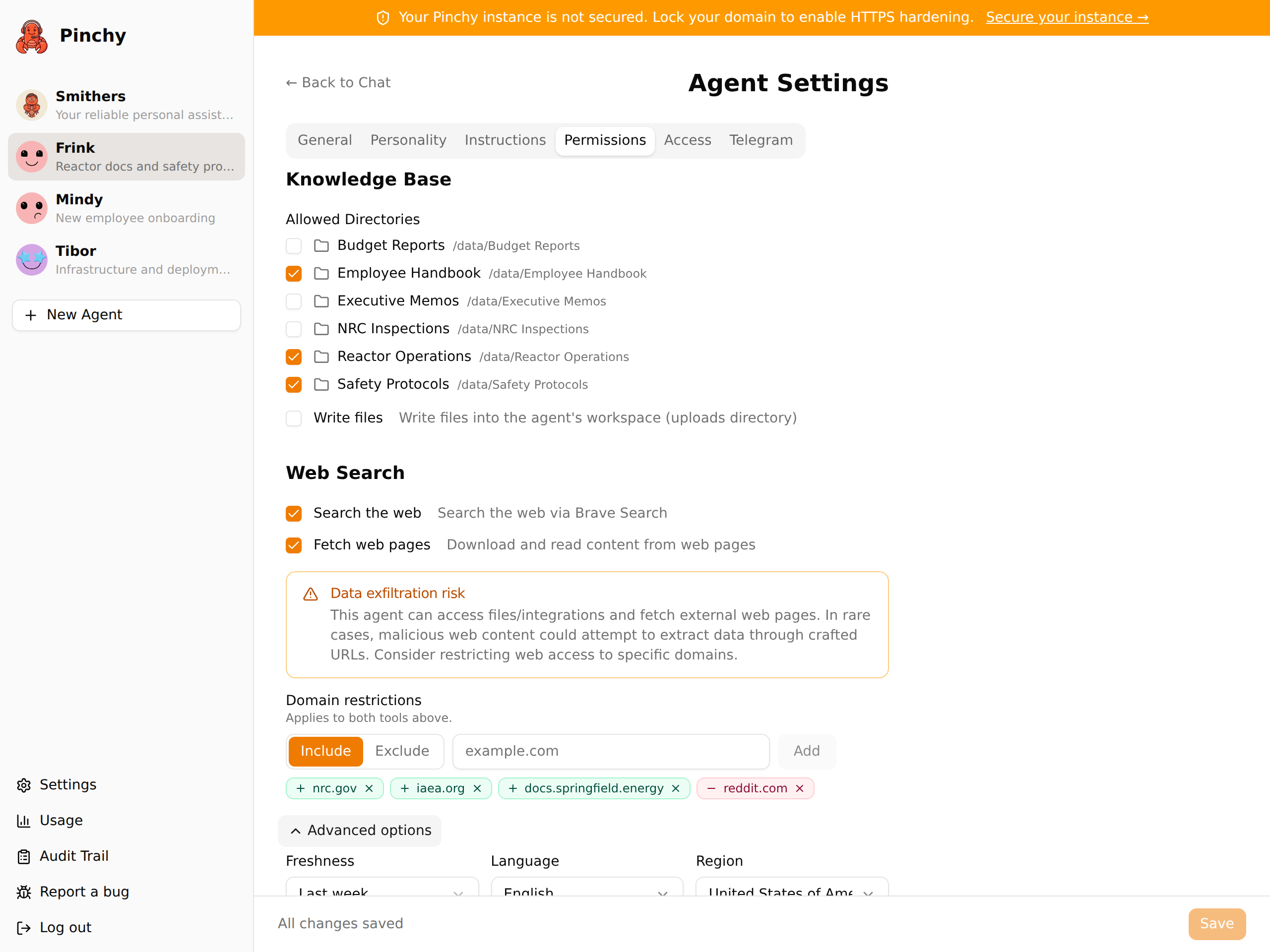
In the Web Search section, check the tools you want to enable:
- Search the web — the agent can perform web searches via Brave Search
- Fetch web pages — the agent can download and read content from specific URLs
-
Click Save
4. Configure per-agent filters
Section titled “4. Configure per-agent filters”When you enable web search tools for an agent, additional filter options appear below the checkboxes. These let you control what the agent can search and fetch. Restrictions apply to both Search the web and Fetch web pages.
Domain restrictions
Section titled “Domain restrictions”By default, an agent with web tools can browse the entire web. To restrict access, click Add restriction and enter domains one at a time. Each entry becomes a chip that you can mark as:
- Include (green
+) — the agent may only access these domains - Exclude (red
−) — the agent is blocked from these domains
Switch the toggle before adding a domain, or click the +/− icon on an existing chip to flip its mode. Remove a chip with the × button.
Combining modes: Include and Exclude work together. +example.com with −blog.example.com means "the whole example.com domain except the blog subdomain." If no Include chips exist, everything outside the Exclude list is allowed. If Include chips exist, only those domains (minus any Excludes within them) are allowed.
Use cases:
- Include
docs.yourcompany.com— restrict an agent to your own documentation - Include
wikipedia.org+arxiv.org— confine research to trusted sources - Exclude
twitter.com,reddit.com— keep agents focused by blocking social media - Exclude specific competitor sites while allowing the rest of the web
Advanced options
Section titled “Advanced options”The Freshness, Language, and Region dropdowns are collapsed by default. Click Advanced options to expand them.
Freshness
Section titled “Freshness”Filter search results by recency:
| Setting | Search results limited to |
|---|---|
| Any time | No time filter (default) |
| Last day | Past 24 hours |
| Last week | Past 7 days |
| Last month | Past 30 days |
| Last year | Past 12 months |
Useful for agents that need current information — set "Last week" for a news monitoring agent, or "Last month" for a market research agent.
Language and Region
Section titled “Language and Region”Searchable dropdowns covering the full ISO 639-1 language list and ISO 3166-1 country list. Bias search results toward a specific language and/or geographic region. These filters influence ranking, not hard filtering — results in other languages or regions may still appear if they're highly relevant. Note that Brave Search supports a subset of these codes; unsupported values are silently ignored by the API.
Security considerations
Section titled “Security considerations”Data exfiltration warning
Section titled “Data exfiltration warning”When an agent has both web access (especially Fetch web pages) and access to sensitive data (files via Knowledge Base or records via Odoo), Pinchy shows a security warning:
Data exfiltration risk — This agent can access files/integrations and fetch external web pages. In rare cases, malicious web content could attempt to extract data through crafted URLs. Consider restricting web access to specific domains.
This is a real risk in any system where an AI agent can both read private data and make outbound requests. A malicious web page could contain hidden instructions that trick the agent into encoding sensitive data into a URL and fetching it.
Mitigation strategies:
- Use Include chips in Domain restrictions to limit fetch access to known, trusted sites
- Only enable Search the web without Fetch web pages if the agent doesn't need to read full page content
- Avoid combining web fetch with access to highly sensitive data (credentials, financial records)
SSRF protection
Section titled “SSRF protection”Pinchy's web fetch module blocks agents from directly requesting — or being redirected into — internal network addresses:
- Private IP ranges (
10.x.x.x,192.168.x.x,172.16-31.x.x) - Localhost (
127.0.0.1,::1) - Link-local addresses
Every redirect hop is re-resolved and re-checked, so an attacker-controlled public site cannot smuggle the agent onto a private address via a 302.
The pre-check and the actual request use the same resolved address: Pinchy resolves the hostname once, verifies it against the private-range list, then pins that address as the connection target via undici's custom lookup hook. An attacker-controlled DNS server cannot return a public IP to the guard and a private IP to the connection — the second resolution never happens.
Credential handling
Section titled “Credential handling”Your Brave Search API key is:
- Encrypted at rest with AES-256-GCM in the database
- Never exposed in API responses (masked when displayed)
- Never logged in application logs or the audit trail
- Only decrypted at the moment a search request is made
What's next
Section titled “What's next”- Integrations — how connections and permissions work under the hood
- Agent Permissions — the full allow-list model and web search tools